
Proxy to Fallback Origins
Last updated
Forward traffic from your Ploy-hosted custom domain to an upstream origin (Vercel, Webflow, Google Cloud Run, and more).
Ploy is built to handle 100% of your marketing site — every page, every route, every asset. In practice, most teams roll over in stages: you build out the Ploy-hosted pages page by page, and during the transition you point unmatched traffic at your former host (Webflow, Vercel, WordPress, etc.) so nothing breaks. The patterns below show how to wire that proxy up per provider until you're fully on Ploy.
Cloudflare Pages & Workers
For a Cloudflare Pages or Workers project, point your Ploy routing rule at the project's Production domain — typically your-project.pages.dev for Pages or your-worker.your-subdomain.workers.dev for Workers.
You can find these in the Cloudflare Dashboard under Compute (Workers) → Workers & Pages. Open your project, then copy the URL listed under Production domains on the project's overview tab. Paste it into the routing rules editor without a trailing slash.
Framer
Framer projects publish to a free, stable *.framer.website subdomain alongside any custom domain — no dedicated origin subdomain setup required.
Mintlify
For Mintlify documentation hosted at a subpath such as /docs, first open Custom domain setup in Mintlify. Enable Host at, enter your domain and base path, then add the domain.
In Ploy, add one routing rule: set Match to Prefix with /docs, set Proxy to to https://your-subdomain.mintlify.site, and enable Rewrite. Set Analytics however you prefer.
Use the .mintlify.site hostname rather than an older .mintlify.app URL so Mintlify cache invalidation and content updates continue to work correctly. See Mintlify's reverse proxy guide for the current routing requirements.
Vercel
You can find your .vercel.app deployment URL on your Vercel deployment dashboard at https://vercel.com/your-org/your-app.
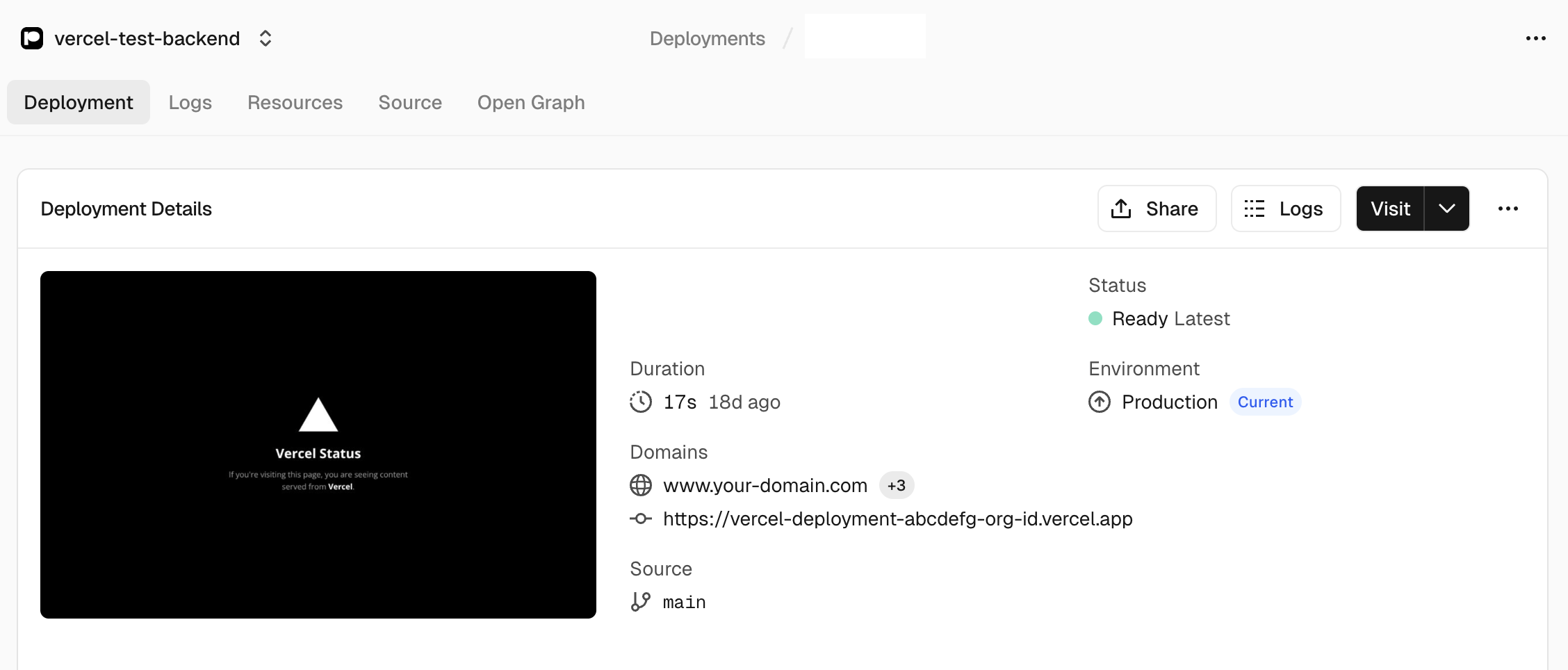
The URL you need for the Ploy Routing Rules proxy is the .vercel.app deployment URL — for example https://deployment-abcdefg.vercel.app. Paste it into the routing rules editor without a trailing slash.
On the proxy rule, set Host to Rewrite. Vercel routes requests by the incoming Host header, so without Rewrite it will see your custom domain instead of the .vercel.app hostname and respond with a DEPLOYMENT_NOT_FOUND error.
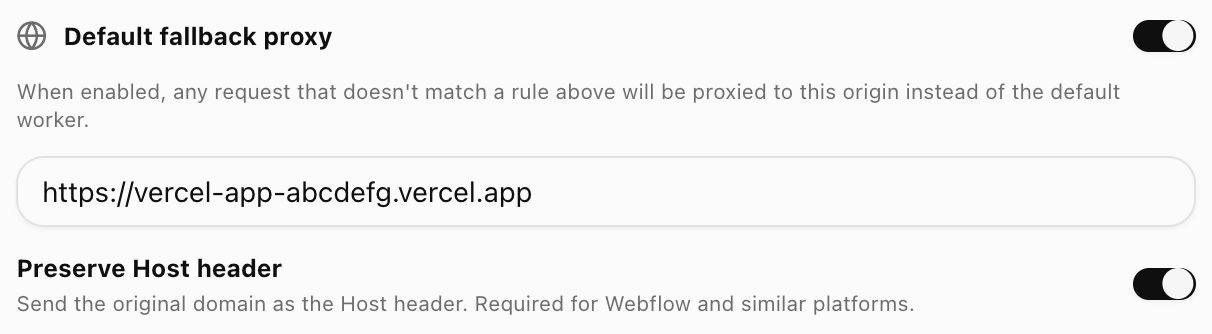
Fallback to your Vercel site for unmatched requests
If you want your existing Vercel deployment to handle anything that doesn't match a routing rule above (e.g. Ploy serves /blog and /pricing, Vercel serves the rest of the site), enable Default fallback proxy and point it at the same .vercel.app deployment URL.
Webflow
Webflow requires a dedicated www2 subdomain to act as a stable proxy target. The setup involves verifying the subdomain with Webflow, removing the default domain, publishing to warm it up, and confirming it doesn't redirect — then pointing Ploy's fallback proxy at it.
Amazon Web Services
AWS exposes stable hostnames for most public-facing workloads — point your Ploy routing rule at whichever URL your service publishes:
- EC2 — public DNS / Elastic IP for an instance. See EC2 service endpoints.
- Application / Network Load Balancer — the ELB DNS name in front of your target group. See Elastic Load Balancing endpoints.
- CloudFront — the distribution domain (e.g.
d1234abcdef.cloudfront.net) sitting in front of S3, an ALB, or another origin. See CloudFront endpoints and quotas.
For other AWS services (API Gateway, App Runner, Amplify, S3 static websites), use the public hostname the service exposes. If a service only emits a private endpoint, front it with a load balancer or CloudFront distribution first so Ploy has a stable public URL to proxy to.
Google Cloud Run
A common use case is routing some requests to a different backend. For Google Cloud Run, you can proxy to your GCP service URL.
You can find your Cloud Run URL in the Google Cloud Console, or with a command similar to:
gcloud run services describe <cloud_run_service> --project=<project> --region=<region> --format="value(status.url)"Other
Many site hosts can be composed together under a single domain — Ploy can proxy to any provider that exposes a stable project URL (like *.vercel.app) or lets you bind a custom domain (the www2.your-domain.com pattern shown above for Webflow). Mix and match: serve /blog from one host, /app from another, and the rest from your primary site.
“Any provider” really does mean any — as long as the origin is reachable over the public internet at a stable hostname, Ploy can proxy to it. That includes a VPS host (Hetzner, DigitalOcean, Linode), a machine exposed through Tailscale Funnel, or even a home server you've made publicly accessible.
The walkthrough below is the provider-agnostic playbook for moving a live domain onto Ploy while keeping an existing host (site builder, app platform, or custom backend) serving whatever Ploy doesn't. The idea is the same regardless of who your current host is: give that host a private origin subdomain, rehearse the whole proxy on a throwaway domain, then cut the real domain over in one confident sitting.
Step 1 — Bind your current site to a dedicated origin subdomain
In your existing host's dashboard, bind the site to a dedicated subdomain such as app.your-domain.com or origin.your-domain.com. This becomes the stable upstream Ploy proxies to. The exact subdomain doesn't matter — your visitors never see it, they only ever see your primary domain.
Important — make sure this subdomain does not redirect. Some hosts auto-redirect every hostname back to your default site URL. If
app.your-domain.comjust bounces to the host's default address, Ploy has nothing stable to proxy to. Open the subdomain directly in a browser and confirm it serves your site in place — no redirect.
Step 2 — Rehearse on a practice domain first
Add a throwaway staging domain like www2.your-domain.com to Ploy and use it to stage the entire proxy setup before your real domain is ever involved. Get this to a confident place:
- Define which pages Ploy serves. Add your routing rules for the paths Ploy should own, then verify Ploy is actually serving those URLs on the practice domain (visit them and confirm you see the Ploy-hosted pages).
- Define the fallback origin. Point Ploy's default fallback proxy at your origin subdomain from Step 1 (
app.your-domain.com) so everything that doesn't match a rule routes back to your existing backend.
Step 3 — Cut over in a single low-traffic work session
Once the practice domain behaves exactly the way you want, do the cutover in one work session — ideally during your site's lowest-traffic hour. Check your analytics (Ploy Analytics, Google Analytics, or your host's dashboard) for the hour of the week with the fewest visitors — often overnight in your primary audience's timezone or over a weekend — so any brief propagation gap while SSL issues affects the fewest people.
- Connect your apex
your-domain.comto Ploy, copy the proven routing rules from your practice domain (the Lovable guide shows this end to end), and wait for the SSL certificate to issue and the hostname to arrive at Ploy/Cloudflare. See advanced setup for what to expect here. - Cleanup: disconnect the domain from your previous host's dashboard — it's no longer serving that domain now that Ploy owns it.
Setup specifics vary by provider. This documentation will keep expanding to cover the most common ones — if you don't see yours listed, or you're unsure how to expose a stable origin, email support@ploy.ai and we'll help you wire it up.
Enterprise Support
Running a complex migration — many origins, strict SEO requirements, or a zero-downtime cutover on a high-traffic domain? Our team can pair with you to map your routing rules, validate the staging setup, and stand by during the cutover window. Reach out at support@ploy.ai or through your account contact to plan a hands-on migration.
Troubleshooting
Tip — test on a staging domain first. If you're migrating a live site that can't afford broken links even for a few minutes, don't connect your production domain until your routing rules are proven. Add a temporary domain like
www-v2.your-domain.comorpreview.your-domain.comto Ploy first, configure and validate all your proxy rules there, confirm every page and asset loads correctly, then cut over the production domain once you're confident everything works.
Proxied page looks broken or missing styles
If you've set up a proxy rule or a fallback origin but the proxied page renders incorrectly — missing styles, broken images, or blank sections — the most common cause is that one of your earlier routing rules is intercepting static asset requests before they can reach the origin. The assets load from Ploy's worker instead of the external host, get a 404, and the page breaks.
To find and fix the culprit:
- Open the page in your browser and launch DevTools (F12 or ⌘ Opt I on Mac).
- Go to the Network tab, set the filter to All, and hard-reload the page.
- Look for rows highlighted in red — these are failed requests. Click into each one and copy the Request URL.
- The URL path prefix of each failing asset is what you need to add as an additional routing rule, set to Proxy to your origin. Add it above any catch-all rule so Ploy forwards those asset requests to the right host.
/s/plugin-something.cssreturns 404. Add a Path Prefix rule for/s/(or the more specific/s/plugin-) and proxy it tohttps://your.site-at-squarespace.com. Reload — the stylesheet loads, the page looks right.