
Ploy Connect WordPress Plugin
Last updated
The Ploy Connect plugin is for domain owners who are not able to configure their domains to Ploy's DNS. If you can point your domain at Ploy, that is our strong recommendation. Stop reading and follow the Custom Domain setup instead.
How it works
Ploy Connect is a lightweight WordPress plugin that acts as a reverse proxy. When a visitor visits a URL that the plugin has synced from your Ploy site's /.well-known/ploy-manifest.json path, WordPress transparently fetches the response from your Ploy site and serves it to the browser. Everything else continues loading from WordPress as normal. Your homepage always stays on WordPress.
This means you can ship Ploy-powered pages while keeping your WordPress blog, CMS content, and existing integrations exactly where they are.
Requirements
- WordPress 5.8 or later
- PHP 7.4 or later
- Your workspace must be on a paid plan (Starter, Pro, or Enterprise). On other plans, pages served from your ploy.build address show the "Made by Ploy" badge, and Ploy Connect passes it through to your WordPress site. After you upgrade, publish to Production once to remove the badge.
- Your Ploy site must be published and have a
<site-name>.ploy.buildURL
Download
Download the latest plugin package to your computer before installing.
Installation
- Download the
ploy-connect-1.2.4.zipfile using the button above. - Go to your WordPress admin at
/wp-admin/index.php, or navigate directly to/wp-admin/plugins.php. - Click Add Plugin, then Upload Plugin.
- In your OS file browser, select the
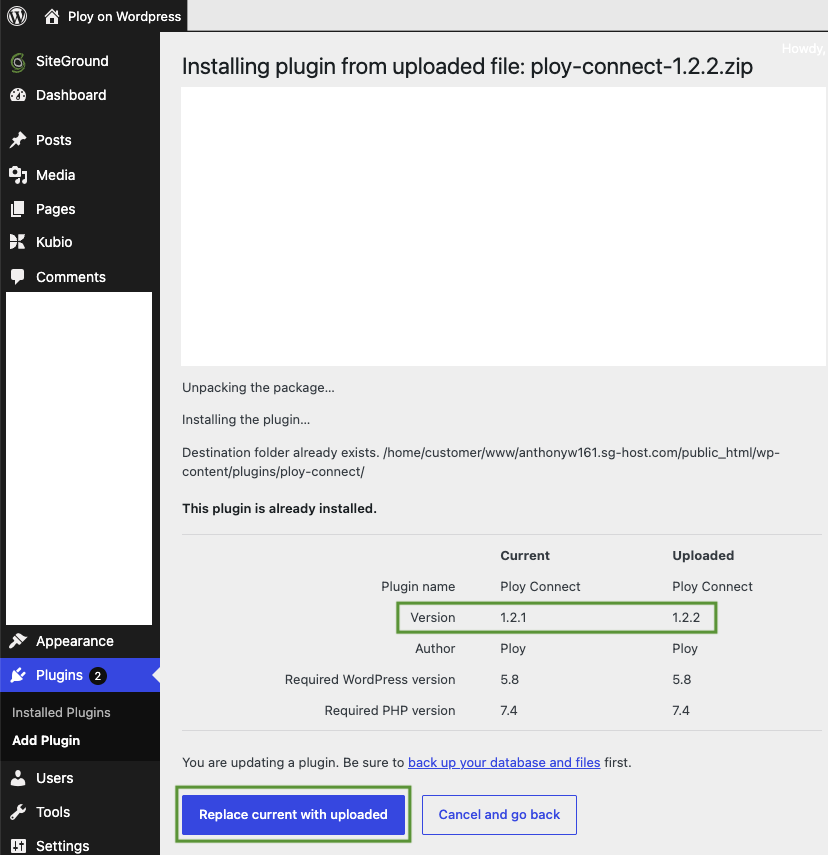
ploy-connect-1.x.x.zipfile you downloaded, then click Install Now. - WordPress will show a confirmation screen comparing the currently installed version with the one you're uploading. Verify the details look correct (plugin name Ploy Connect, author Ploy), then click Replace current with uploaded.
Ploy site setup
Guidance for Ploy agent
Copy this prompt and paste it directly into Ploy's agent to generate a manifest for your site:
Generate a ploy-manifest.json for me.

Rules:
- Output valid JSON only. No comments, no trailing commas, no Markdown fences.
- Use booleans for "enabled" (not strings like "true").
- Use integers for TTL values (not strings like "300").
- Always include these two required routes exactly as shown:
  { "local": "/_ploy_static/*", "remote": "/_ploy_static/*", "ttl": 31536000 }
  { "local": "/_ploy/*",        "remote": "/_ploy/*",        "ttl": 0 }
- Prefer explicit "remote" values, even when they match "local".
- Keep all TTLs between 0 and 86400.
- Do not generate routes for /wp-admin, /wp-json, /wp-login.php, or other WordPress-reserved paths.
- Never generate a route for "/", "/*", or a bare "*". The homepage stays on WordPress.
- Use wildcard pairs consistently, e.g. "/resources/*" maps to "/blog/*".
- If uncertain, generate the smallest safe manifest: the two required _ploy routes, one content route, and "enabled": true.
- Upon every site build, the manifest should rebuild itself.

My site origin is: <your-site>.ploy.build
Pages I want to proxy: <list your paths here>
Configuration
Manifest setup
Ploy Connect reads its route manifest from:
{origin}/.well-known/ploy-manifest.jsonWordPress fetches this file using the site token as a Bearer token. The manifest is the source of truth for which WordPress paths are proxied to Ploy.
Working example
This is a real working manifest. It proxies several named pages and the two Ploy internal path prefixes required for static assets and runtime requests to work correctly. Your homepage stays on WordPress.
{
  "version": 1,
  "enabled": true,
  "routes": [
    { "local": "/_ploy_static/*", "remote": "/_ploy_static/*", "ttl": 31536000 },
    { "local": "/_ploy/*",        "remote": "/_ploy/*",        "ttl": 0 },
    { "local": "/ploy",           "remote": "/ploy" },
    { "local": "/headers.json",   "remote": "/headers.json" },
    { "local": "/hello-world",    "remote": "/hello-world" },
    { "local": "/about",          "remote": "/about" },
    { "local": "/contact",        "remote": "/contact" }
  ],
  "cache": {
    "default_ttl": 300
  }
}
The homepage always stays on WordPress. Ploy Connect cannot proxy / or a bare *, so a route with "local": "/", "/*", or "*" is ignored, whether it comes from the manifest or from Local overrides. To serve your homepage from Ploy, point your domain at Ploy instead. See Custom Domain setup.
Key routes to note:
/_ploy_static/*: Ploy's static asset path. Setttl: 31536000(one year) because these assets are content-addressed and never change at a given URL. This route is required. Without it, CSS, JS, and images will not load./_ploy/*: Ploy's runtime request path. Setttl: 0to disable caching so runtime responses are always fresh.
Wildcard route: proxy a section
This proxies /docs and every path under /docs/:
{
  "version": 1,
  "enabled": true,
  "routes": [
    { "local": "/_ploy_static/*", "remote": "/_ploy_static/*", "ttl": 31536000 },
    { "local": "/_ploy/*",        "remote": "/_ploy/*",        "ttl": 0 },
    { "local": "/docs/*",         "remote": "/docs/*",         "ttl": 600 }
  ]
}
Remap route: different public and Ploy paths
This keeps the public WordPress URL under /resources/ but serves content from Ploy's /blog/ path. A visitor to /resources/launch-checklist receives the Ploy page at /blog/launch-checklist:
{
  "version": 1,
  "enabled": true,
  "routes": [
    { "local": "/_ploy_static/*", "remote": "/_ploy_static/*", "ttl": 31536000 },
    { "local": "/_ploy/*",        "remote": "/_ploy/*",        "ttl": 0 },
    { "local": "/resources/*",    "remote": "/blog/*",         "ttl": 300 }
  ]
}
Disable proxying remotely
Set enabled to false to pause proxying from Ploy without removing the manifest:
{
  "version": 1,
  "enabled": false,
  "routes": []
}
Manifest schema
Full shape with all optional fields:
{
  "version": 1,
  "enabled": true,
  "min_plugin_version": "1.2.0",
  "routes": [
    {
      "local": "/public-path/*",
      "remote": "/ploy-path/*",
      "ttl": 300
    }
  ],
  "cache": {
    "default_ttl": 300
  }
}| Field | Required | Notes |
|---|---|---|
| version | No | Integer. Defaults to 1. |
| enabled | No | Boolean. Defaults to true. Set false to disable proxying. |
| min_plugin_version | No | If set higher than the installed plugin version, proxying pauses. |
| routes | No | Array of route objects. Empty or missing means no manifest routes. |
| routes[].local | Yes | Public WordPress path. Cannot be / or a bare *, because the homepage always stays on WordPress. |
| routes[].remote | No | Ploy origin path. Defaults to the same value as local. |
| routes[].ttl | No | Per-route cache TTL in seconds. Clamped to 0–86400; 0 disables plugin caching for that route. |
| cache.default_ttl | No | Default cache TTL in seconds. Clamped to 0–86400. |
Route rules:
- Use exact paths for one page:
/pricing. - Use wildcard paths for a section:
/blog/*. - Wildcard routes preserve the suffix after the matched prefix.
- Always start paths with
/. - The homepage (
/) always stays on WordPress. Routes for/,/*, or a bare*are ignored. - Always include
/_ploy_static/*(withttl: 31536000) and/_ploy/*(withttl: 0) so static assets and runtime requests work correctly. - WordPress-reserved paths such as
/wp-admin,/wp-json, and/wp-login.phpare never proxied even if present in the manifest. - Local WordPress exclusions always win over manifest routes.
After activation, go to /wp-admin/options-general.php?page=ploy-connect in your WordPress admin, or find the plugin by searching for "Ploy" at /wp-admin/plugins.php?s=ploy&plugin_status=all. You'll see three fields:
Ploy site origin
Enter the origin of your published Ploy site. This will be your <site-name>.ploy.build URL. You can find it in your Ploy dashboard under Hosting.
Local overrides
Use Local overrides when you need WordPress-side routing rules on top of the routes published by Ploy. Most sites should avoid over-complicating these rules. For the majority of cases, the simplest approach is to assign a dedicated URL prefix exclusively to Ploy, such as /solutions/* or /promotions/*, set the rule once, and leave it alone. Ploy serves everything under that prefix; WordPress handles everything else.
Add one rule per line, then click Save Changes.
| Example | What it does |
|---|---|
| /landing/* | Add a route: proxy /landing and all child paths. |
| /pricing | Add one exact route: proxy only /pricing. |
| /resources/* => /blog/* | Remap: visitor sees /resources/…, Ploy serves /blog/… |
| !/blog/legal | Exclude: WordPress keeps serving /blog/legal. |
| /blog/* ttl=600 | Set cache TTL: cache this route for 600 seconds. |
| /campaign/* ttl=0 | Disable caching: do not cache this route in Ploy Connect. |
Rule syntax reference
| Rule | Meaning |
|---|---|
| /pricing | Proxy only /pricing to Ploy. |
| /blog/* | Proxy /blog and all child paths. |
| /resources/* => /blog/* | Visitor sees /resources/…, Ploy serves /blog/… |
| !/pricing | Keep /pricing on WordPress, even if Ploy publishes it. |
| !/landing/* | Keep the whole /landing/ section on WordPress. |
| ttl=600 | Cache that route for 600 seconds. |
| ttl=0 | Do not cache that route in Ploy Connect. |
Key rules to remember
- Local exclusions with
!always win over Ploy manifest routes. - Local additions override manifest routes with the same local path.
- The longest matching route wins.
- Lines starting with
#are ignored. - A proxied route shadows any WordPress page at the same URL.
- Do not use
/or a bare*as a route. Ploy Connect ignores them, and your homepage always stays on WordPress. - WordPress core paths like
/wp-admin,/wp-json, and/wp-login.phpare never proxied.
Setting up Manifest reader token
The plugin authenticates requests to your Ploy site using a shared secret. To set this up, prompt your Ploy agent with:
Respond with HTTP 200 OK iff an
Authorization: Beareris sent and matches a shared secret? Please help me define a new secret calledPLOY_MANIFEST_SECRET
Generate a strong secret using your password manager and store it there. Once Ploy has been configured to accept it, paste that same secret into the Site Token field of the WordPress plugin, then click Save Changes.
You can verify the token is working by running the following curl command, replacing your-site.ploy.build and example-value-for-site-token with your own values:
curl -X GET 'https://your-site.ploy.build/.well-known/ploy-manifest.json' \
  --header 'User-Agent: yaak' \
  --header 'Accept: */*' \
  --header 'Authorization: Bearer example-value-for-site-token'
A 200 OK response confirms the token is accepted. Any other status means the secret does not match what Ploy expects. Double-check both values and re-save.
If you'd prefer not to authenticate the manifest endpoint, you can configure your Ploy site to always return 200 OK regardless of the token. In that case the plugin's Site Token field can be left empty or set to any value.
Verifying the integration
- Publish a test page in your Ploy workspace at a path that matches one of your configured prefixes, for example
/lp/test. - Fetch
https://your-site.ploy.build/.well-known/ploy-manifest.jsonwith your bearer token using curl or a GUI HTTP client and confirm the test page's path appears in the manifest JSON. - Visit
https://your-wordpress-domain.com/lp/testin your browser. - You should see the Ploy page render. To confirm the content is being served by Ploy, open
view-source:https://your-wordpress-domain.com/lp/testin your browser and search for a Ploy-specific string such asploy-text.
404 behavior
When the plugin proxies a request and Ploy returns a 404, the plugin can either pass that 404 response through to the visitor or hand control back to WordPress.
This is controlled by the Forward 404s to WordPress setting in the plugin admin, which is enabled by default. When enabled, a Ploy 404 causes the plugin to silently return without emitting any response. WordPress then continues handling the request normally, either serving a matching WordPress page at that path or falling through to the theme's standard 404 page.
Disable this setting if you want Ploy's 404 response to be served directly to the visitor instead of falling back to WordPress.
Cache settings
The plugin has a Cache TTL (seconds) setting. We recommend setting this value to 0 so your users always see the latest published content hosted by Ploy. This setting may become useful during an infrastructure migration when you plan to refactor how your web requests are routed, and in the meantime you want to continue serving cached content.
Automatically syncing manifests
If you did not reserve a dedicated URL prefix for Ploy pages and are adding pages that require new proxy rules, a scheduled job (e.g. cron) can call a sync handler on the plugin to force a refresh.
Troubleshooting
The proxied page returns a 502 or blank screen
This usually means WordPress can't reach the Ploy origin. Check:
- The Ploy site origin field uses
https://and has no trailing slash. - Your Ploy custom domain has a valid SSL certificate (green padlock).
- Your WordPress host allows outbound HTTPS. Check with your host if you're on a managed plan with egress restrictions.
WordPress is still serving its own 404 for the proxied path
WordPress route matching happens before the proxy plugin can intercept it when a WordPress page or post exists at the same path. Either:
- Delete or unpublish the conflicting WordPress post/page, or
- Change the path prefix used in Ploy to one that WordPress doesn't already own.
Related: Custom Domain Quick Setup · Reverse Proxy · Fallback Origins