
Single sign-on (SSO)
Last updated
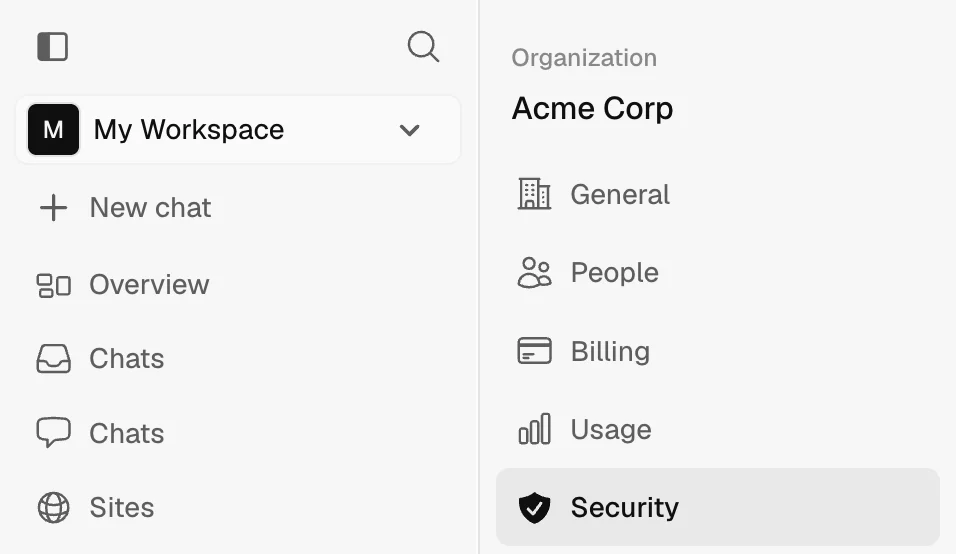
SSO is available on Enterprise plans. If your plan does not include SSO, Organization settings, then Security, shows Talk to sales to enable SSO. Select it to contact sales, or contact your account manager. To enable it, contact sales@ploy.ai or your account manager. To configure SSO, you need the Owner role in your organization. If you are an admin, you can open Security to see that SSO is available and which organization owner can configure it. If your plan does not include SSO, admins see the Talk to sales prompt instead. Only the owner can change SSO settings. Open Organization settings and select Security.
If your organization's plan no longer includes SSO, members who already sign in with SSO can keep doing so. The owner can still view the SSO provider, delete it, and turn off Require SSO, but cannot change the provider or verify a new domain.
Confirm or edit your email domain
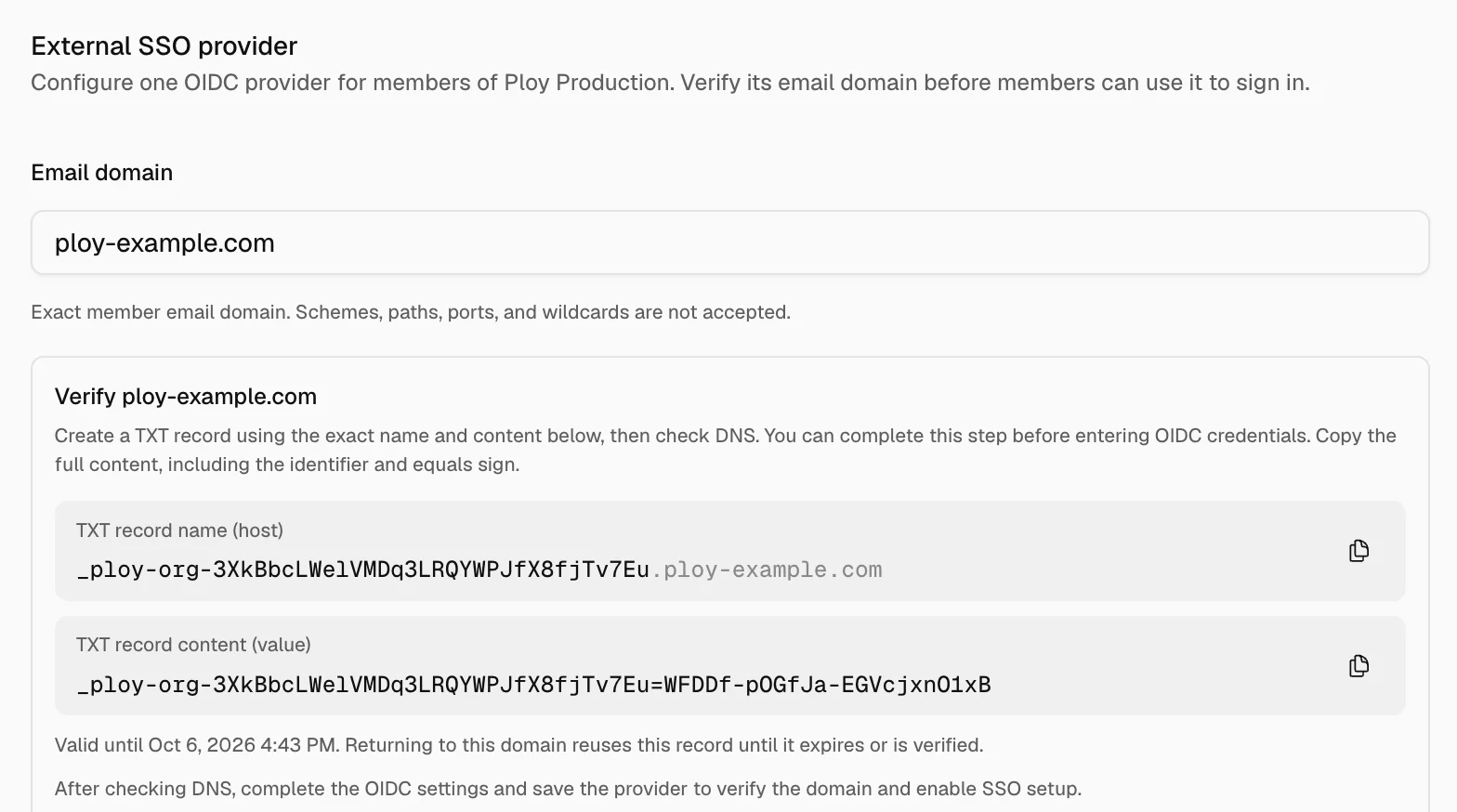
First, confirm the Email domain for members who will sign in through your identity provider (IdP). This field defaults to the organization owner's email domain, unless the owner uses a personal email provider. You can keep the default or change it to the email domain your members use. Ploy shows the TXT record as soon as the domain is valid. You can add the record before you enter your OIDC credentials. If you edit the domain, leave the field to load the record for the new domain. Each record is valid for seven days. The expiry shows under the record.
Ploy will show a TXT DNS record. Ask your DNS administrator to add it using the exact record name (host) and record content (value) provided.
Once the record has been added with both values, click Check DNS to confirm that it is in the correct place. Check DNS only checks the record. You verify the domain after you save the provider.
Set up your IdP application
Follow your identity provider's instructions to create an OIDC application and choose Web application as the application type. For example, name the application Ploy.
Set a temporary callback redirect URL
When creating the OIDC application in your IdP, you may be asked for a Callback URL, Redirect URI, or similarly named property. Enter a temporary placeholder at this stage.
Add your organization members' profiles to the group assigned to this application so they have access to sign in with SSO.
These provider guides are examples, not an exhaustive list:
- Okta OIDC app integration setup.
- Google OpenID Connect setup. Follow the OAuth 2.0 setup instructions to obtain your client credentials.
- Microsoft Entra OIDC app setup. Follow the custom (non-gallery) application instructions.
Gather your OIDC credentials
Next, gather these values from your identity provider (IdP), such as Google Workspace or Okta, for the OpenID Connect (OIDC) application you will use with Ploy.
- OIDC issuer. Your provider's exact public HTTPS issuer URL, including any tenant or authorization-server path. Use the issuer URL, not the discovery-document URL or authorization endpoint URL.
- Client ID. The identifier for your OIDC application.
- Client secret. The actual secret value paired with that client ID.
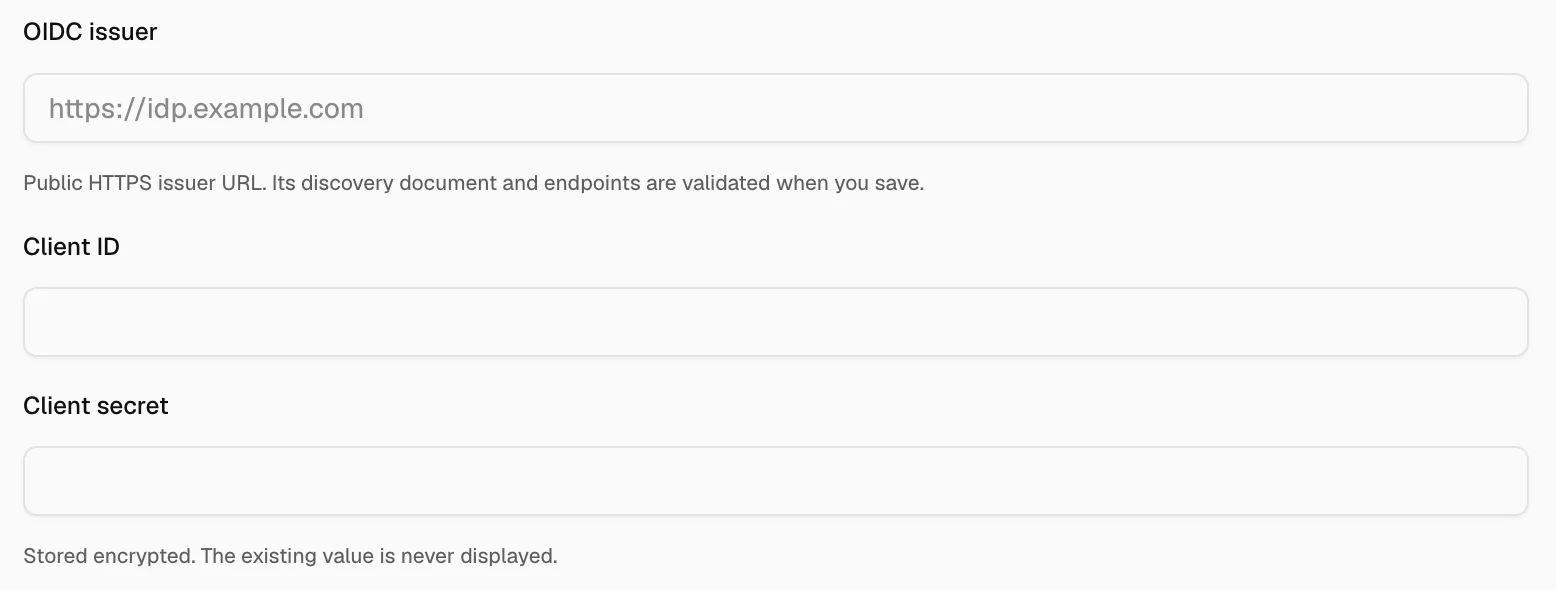
Use the Client ID and Client secret from the same OIDC application. Keep the client secret private. For Microsoft Entra, copy the client secret Value, not the Secret ID. The value is only displayed when you create the secret.
Choose token endpoint authentication
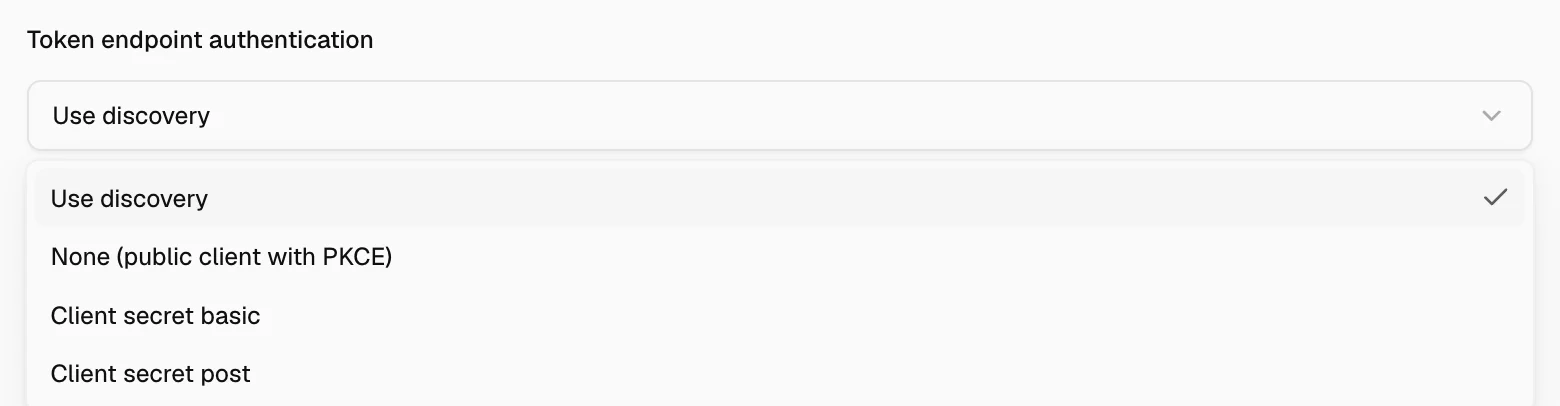
For Token endpoint authentication, most users should leave the setting at Use discovery.
If you know the authentication method required by your identity provider (IdP) for this OIDC application, you can explicitly select the matching option.
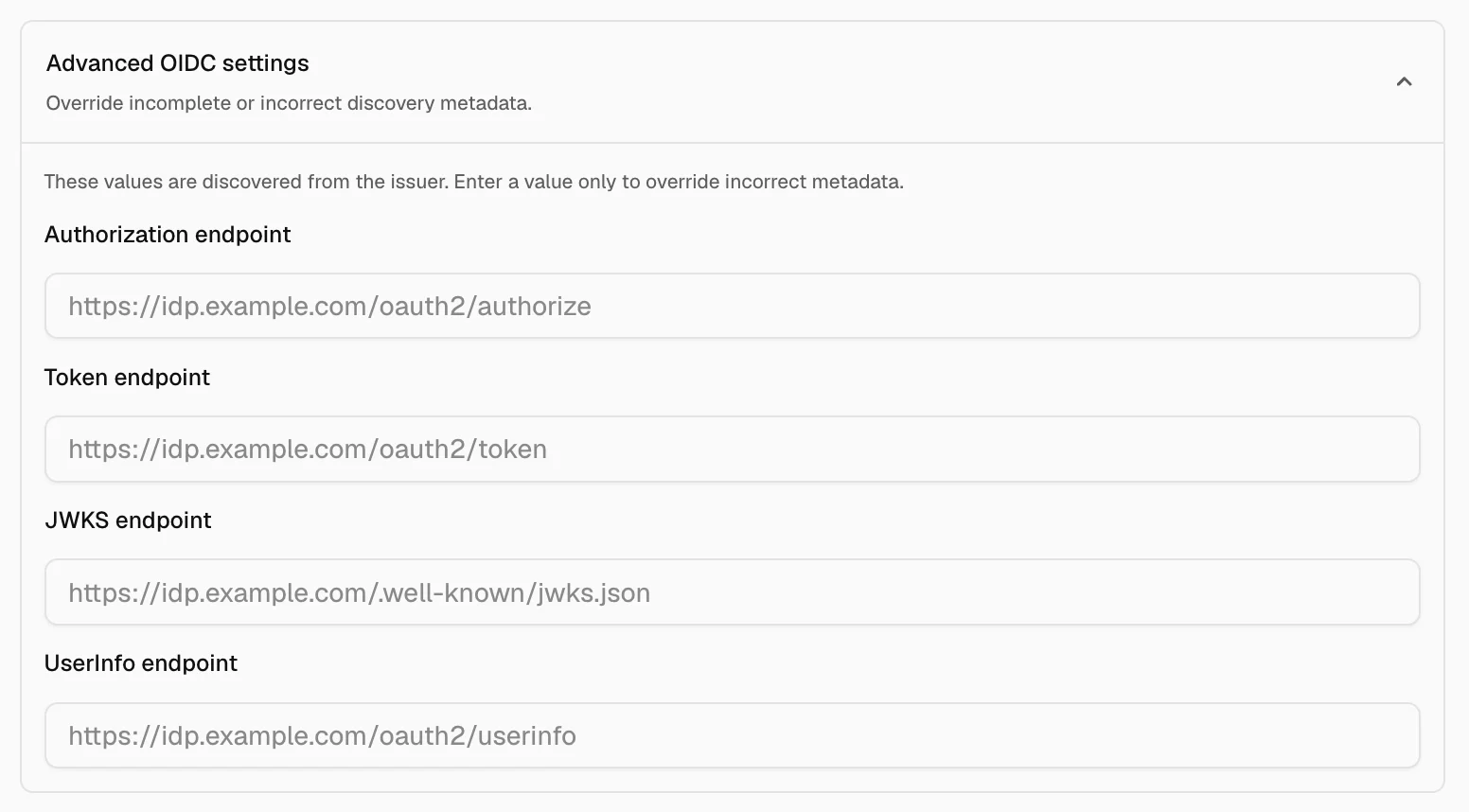
Advanced OIDC settings
Most users with a well-known identity provider (IdP) do not need to customize these settings. The endpoint URLs are discovered from your OIDC issuer.
Only enter overrides if the discovery metadata is incomplete or incorrect. Your organization is responsible for obtaining the correct Authorization, Token, JWKS, and UserInfo endpoint URLs from your IT administrators before making changes.
Save the provider and update your IdP
- After entering the OIDC issuer, Client ID, and Client secret and completing any required settings, click Save Provider in Ploy's SSO configuration. You need a passkey on your account to save the provider. After you save, click Verify domain. Verifying the domain also asks for your passkey.
- Copy the organization-specific callback URL generated by Ploy exactly as shown.
- Return to your IdP and paste that URL into the Callback URL, Redirect URI, or similarly named field where you entered a temporary placeholder earlier. Save the changes in your IdP.
The callback URL is unique to your organization. It will look like this example:
https://ploy.ai/api/auth/sso/callback/sso-something-random-and-uniqueUse the URL generated by Ploy for your organization, not the example above.
Test SSO in a separate session
- Stay logged in to Ploy in your current session. Keep this session open while you test.
- Use a different browser, a different browser profile, or a different device to start a separate session. In that session, go to https://ploy.ai/auth/login.
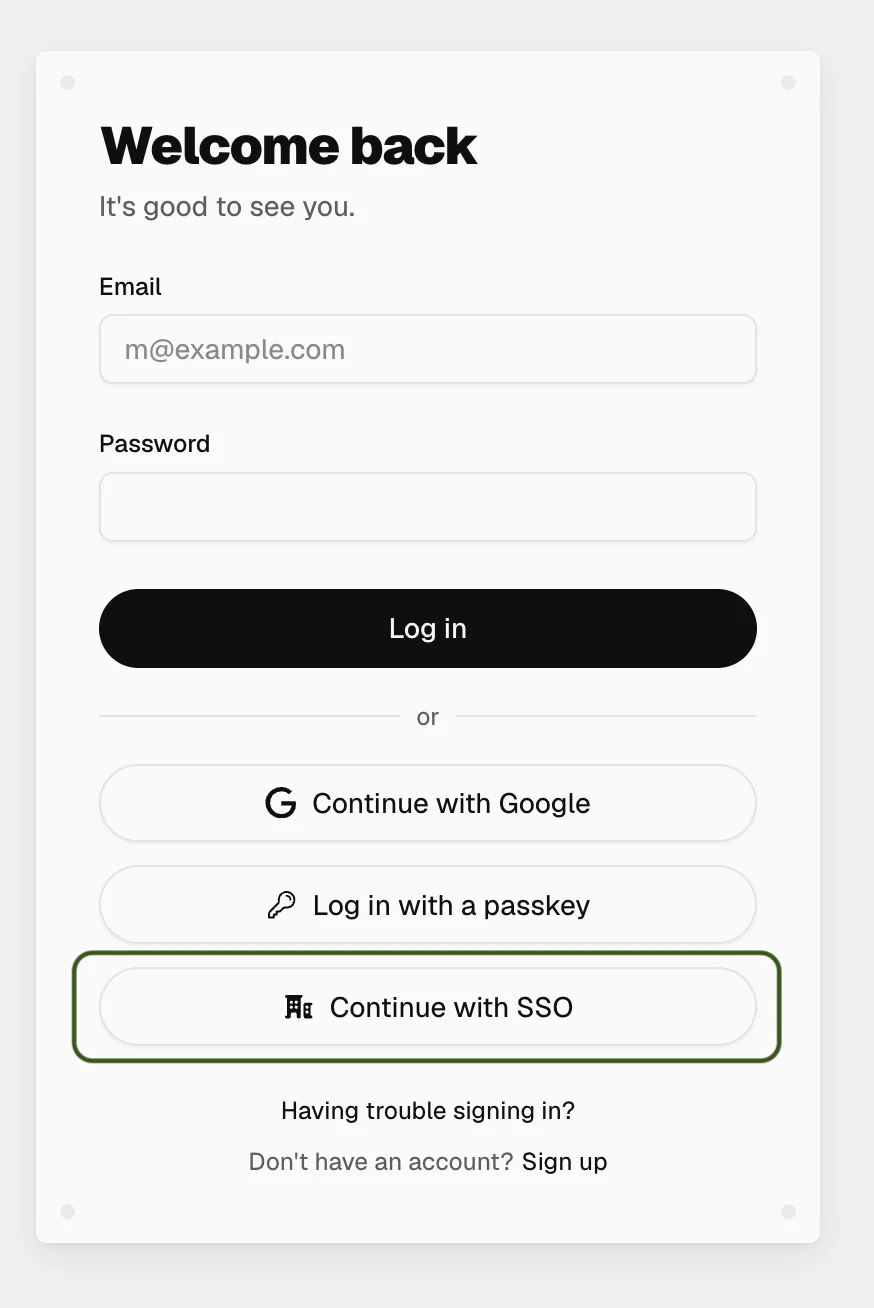
- In the new session, you will see the login screen. Click Continue with SSO.
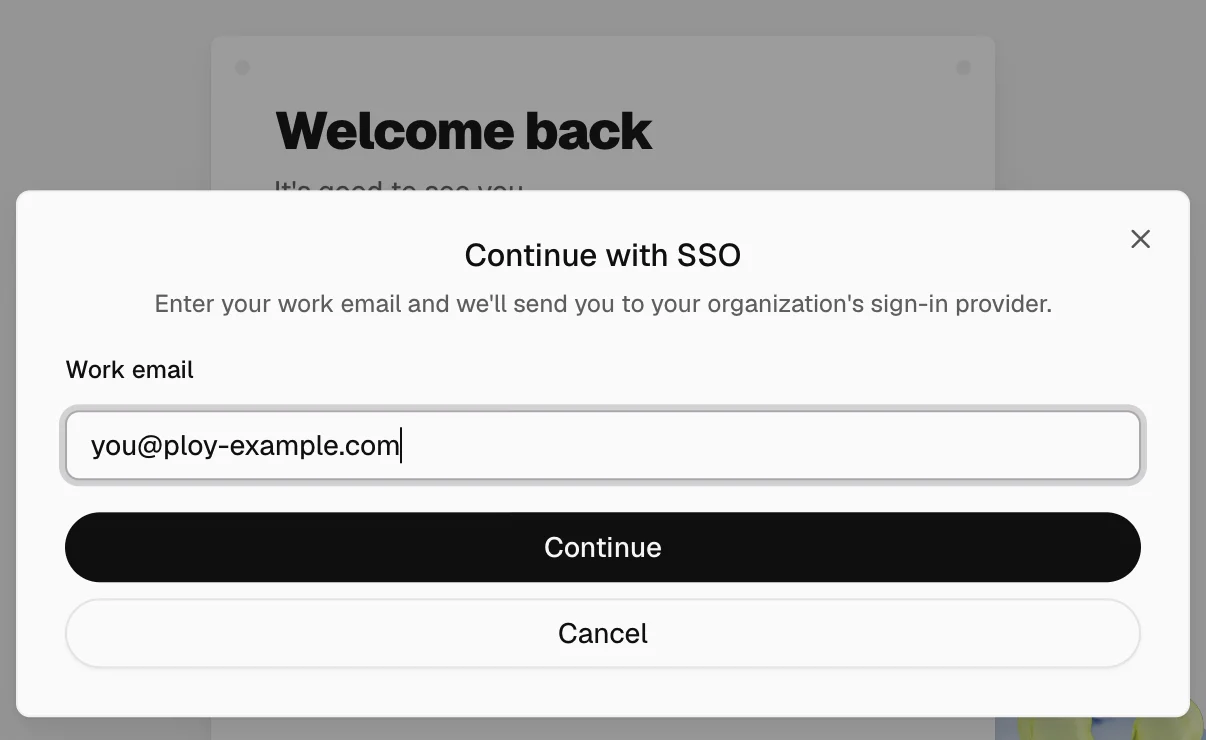
If the setup is incomplete or the SSO sign-in fails, return to your original logged-in session to finish or correct the configuration. Do not sign out of that session until you have successfully tested SSO.
SSO and OIDC setup is advanced. For enterprise support, contact sales@ploy.ai.